
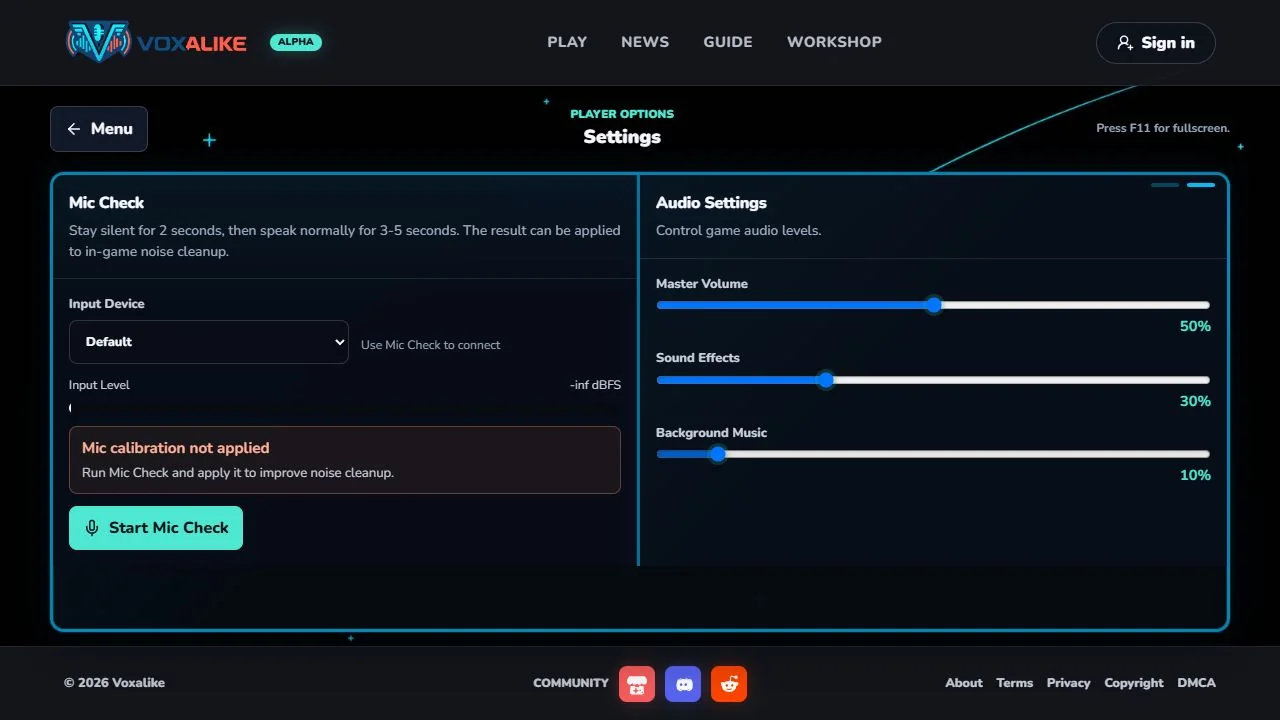
Run the fastest check first
Open Voxalike over HTTPS, select the microphone you intend to use, and run Mic Check. Speak at the same volume you will use during the scene.
- If the meter moves and playback is clear, the input works. Return to the line and record again.
- If the meter never moves, check the site permission and active device.
- If the meter moves but playback is silent, inspect output volume and the selected speaker or headphones.
- If the meter spikes constantly, lower input gain or move away from the microphone.
Do not erase all browser data at the start. That can remove installed Dub Packs and recent local results without fixing an operating-system permission.
Allow the site to use your microphone
Select the padlock or site-controls icon beside the address bar and set Microphone to Allow for voxalike.com. Reload the game after changing the setting, then run Mic Check again.
If no microphone option appears, confirm you opened the official HTTPS address. Browser microphone capture requires a secure context. Also close private or restricted windows that may apply different permission rules.
If you previously chose Block, the browser may remember that decision and stop showing a prompt. Change it from the site permission panel rather than waiting for another pop-up.
Select the correct input
Laptops and headsets often expose several devices with similar names. The browser may still be using a built-in microphone after you connect a USB headset, or may hold onto a disconnected Bluetooth profile.
- Open the Voxalike microphone selector or browser site setting.
- Choose the headset, USB interface, or built-in input explicitly.
- Speak while watching Mic Check.
- Disconnect unused controllers or webcams with microphones if the names are confusing.
On Bluetooth devices, make sure the operating system selected the headset microphone profile, not only the high-quality playback profile.
Check operating-system privacy controls
The browser itself needs permission at the operating-system level.
On Windows, open microphone privacy settings and allow microphone access for desktop apps and the browser you are using. In the Sound input panel, select the same device and watch its input meter.
On macOS, open Privacy & Security → Microphone and allow the browser. Fully quit and reopen the browser if macOS requests it.
If the operating-system meter is silent, the issue is below Voxalike. Reconnect the device, unmute its hardware switch, check the cable/interface, and test with the system recorder before returning to the game.
Close apps that take exclusive control
Voice chat, streaming, recording, meeting, and audio-production apps can hold the microphone or change its sample settings. Close Discord, OBS, a DAW, meeting tabs, and other recorders temporarily. Reload Voxalike and repeat Mic Check.
If that works, reopen the other app after Voxalike has acquired the device. Avoid running noise-removal or voice-changing utilities until a clean baseline recording succeeds.
Disable interfering extensions for one test
Privacy blockers, script filters, audio enhancers, and aggressive security extensions can interfere with permission prompts or media capture. Test the official game in a normal clean browser profile with extensions disabled.
Do not use private browsing as the only test because it may block storage or apply special microphone rules. A fresh standard profile is a clearer comparison and avoids risking your main profile’s installed packs.
Fix quiet, clipped, or noisy takes
The voice is too quiet
Move closer, speak across rather than directly into the capsule, and raise system input gain in small steps. Confirm the physical headset boom is pointed toward your mouth. Avoid normalizing a nearly silent recording after the fact; capture a healthy signal first.
The beginning is cut off
Press Record, allow a brief moment for capture to settle, then deliver the line within its cue. If every line in one pack has the same timing problem but other packs work, the mod’s timestamps may need correction by its creator.
The take crackles or distorts
Lower input gain, move farther back, and turn off automatic gain or audio effects for a test. USB interfaces should use stable cables and a direct port rather than an unreliable unpowered hub.
The original scene echoes into the recording
Use headphones. Lower speaker volume is a partial workaround, but an open speaker near a laptop microphone will still bleed into the take.
Mobile browser recovery
Mobile operating systems can interrupt microphone capture when another app starts audio, a call arrives, the screen locks, or the browser moves to the background. Keep Voxalike visible, disable battery-saving restrictions for the session, close other audio apps, and run Mic Check again after any interruption.
For a first multiplayer session, a desktop or laptop browser with wired headphones is easier to diagnose. Move to mobile only after confirming the account and pack work elsewhere.
Symptom-to-fix table
| Symptom | Most likely next check |
|---|---|
| No permission prompt | Address-bar site settings; remove an old Block decision |
| Mic Check is flat | Active input, OS privacy permission, hardware mute |
| OS meter works, browser meter does not | Browser permission, selected device, extension interference |
| Meter works, replay is silent | Output device and media volume |
| Only multiplayer fails | Re-run Mic Check in the room tab; close competing chat capture |
| Only one Dub Pack cuts lines | Test another pack; report timing to that mod’s creator |
| Audio worked before app switching | Reload after mobile audio focus was interrupted |
Once Mic Check records a clean sentence, retry the current line. If a completed multiplayer result was already created before the tab was lost, use the Recent Dubs recovery guide instead of changing permissions repeatedly.